

Troubleshooting your Command Code
Common issues and solutions for Command Code. If you can't find what you're looking for here, check the FAQs or Error Codes pages.
Problem: Running cmd prints:
On versions of Command Code before this check existed, the same cause showed up as a crash instead:
Command Code requires Node.js 22 or newer (the current LTS). Node 22 is where APIs the CLI depends on landed, so on Node 20 and below it cannot start.
Solution:
-
Check what you're running:
-
If it's below
v22, upgrade using one of the options in Upgrading Node.js below. -
Reinstall Command Code so its
cmdbinary is linked against the new Node:This step matters. Global binaries are linked to the Node version that installed them, so skipping it can leave
cmdpointing at your old Node and failing with the same message. -
Confirm:
Pick whichever matches your setup. If you don't already use a version manager, n is the quickest way to get onto the LTS.
n (simplest, macOS/Linux):
If your global npm prefix is a root-owned directory, both commands need sudo.
nvm (macOS/Linux):
fnm (fast, cross-platform):
Volta (cross-platform, pins per project):
asdf (multi-language version manager):
Homebrew (macOS):
Windows (winget, Chocolatey, or a version manager):
nvm on Windows means nvm-windows, which is a different tool from the macOS/Linux nvm; its commands are similar but not identical. fnm also works well on Windows. See the Windows guide for the rest of the Windows setup.
Linux via NodeSource (system-wide, no version manager):
Official installer / archives: download the LTS build for your platform from nodejs.org.
After upgrading by any route, reinstall Command Code (npm i -g command-code) so cmd relinks to the new Node.
Problem: Running cmd returns "command not found"
Solution:
-
Verify the install succeeded:
-
Ensure your global
node_modules/.binis in yourPATH:The binary directory is
<prefix>/bin. Add that to yourPATHif it's not already there. -
Restart your terminal or source your shell profile:
Problem: cmd login fails or you get unauthorized errors
Solution:
-
Log out and log back in:
-
Clear cached credentials and retry:
-
Check that your account is active on Command Code Studio
See also: Unauthorized error
Problem: Errors related to API keys or provider authentication
Solutions:
- Verify your provider is configured correctly
- Check your API key is valid and has not expired
- Ensure your plan has not exceeded its usage limits. See Usage exceeded
Problem: Chrome shows a permission prompt saying a site wants to access devices on your local network during cmd login.
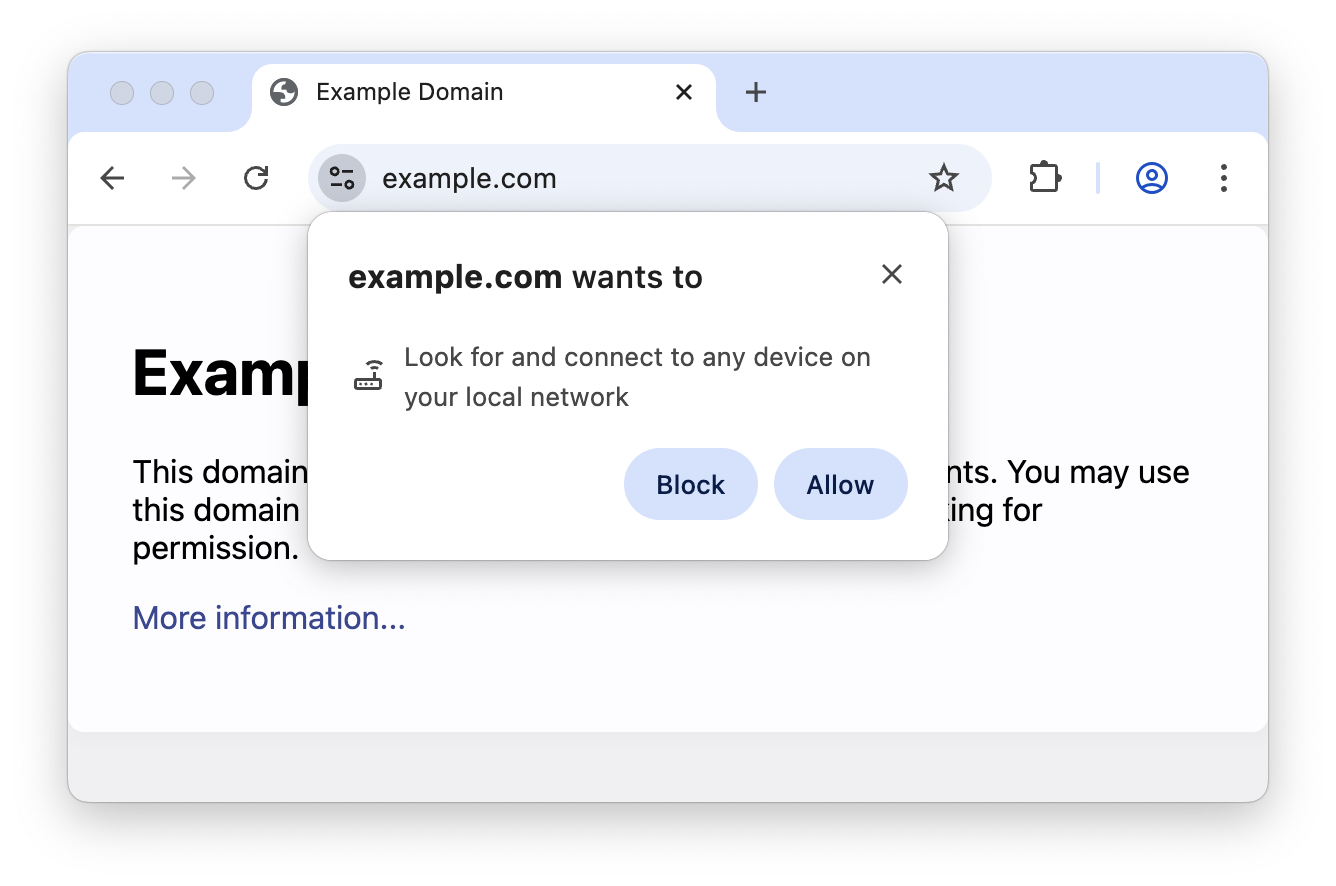
This happens because Command Code runs a temporary local server (e.g. localhost:PORT) to receive the OAuth callback after you authorize in the browser. Chrome's Local Network Access (LNA) feature treats this as a request from a public website to a local network resource and shows a permission prompt.
This is part of Chrome's effort to protect users from cross-site request forgery (CSRF) attacks targeting devices on private networks.
Solutions:
- Allow the request - Click "Allow" when Chrome shows the LNA prompt. This is safe because the local server is started by Command Code on your machine to complete the authentication flow.
The prompt during Command Code auth is expected behavior and safe to allow.
Problem: MCP server shows a red indicator or fails to connect
Solutions:
-
Verify the server config:
-
For stdio servers, ensure the command is installed and in your
PATH -
Use
/mcpinside a session to see the specific error message
Problem: OAuth or token issues with an MCP server
Solutions:
-
Re-authenticate:
-
Clear and retry:
-
Check token status:
See the full MCP documentation for more details.
Learn how to troubleshoot issues with Agent Skills in Command Code.
Problem: Skills don't show up in the menu
Command Code surfaces every load failure for skills with a one-line reason. You don't have to guess which field is wrong:
- In the TUI: open
/skillsand press space to see the grouped Skipped report. Each broken skill is a clickable link to its file; press c to copy the report as markdown for Command Code to fix. - From the CLI: run
cmd skills list --debugto get the same grouped report headlessly.
If the skill isn't even listed as skipped, it isn't being discovered at all. Walk the checks below.
-
Check directory structure:
-
Verify SKILL.md exists:
-
Validate frontmatter format:
-
Check for YAML syntax errors (missing quotes, invalid characters)
-
Ensure description is ≤1024 characters
-
Confirm the directory name matches the
name:field.code-review/must holdname: code-review.
Problem: You added a new skill, mod, or keybinding on disk, but the running session doesn't see it.
Solution: Run /reload to reload the current session. It picks up newly installed skills, mods, and keybindings without restarting Command Code.
Problem: Pressing Enter in /skills doesn't open the file
Solutions:
-
Check
$EDITORis set: -
Set
$EDITORif missing (see Setting up your editor) -
Verify editor is in PATH:
Problem: Command Code doesn't use a skill even though it's relevant
Solutions:
-
Make the description more specific with keywords:
-
Ensure the skill instructions are clear and actionable
-
Ask Command Code explicitly: "Use the testing-patterns skill to write tests"
Large pastes and dictation collapse into a [Text#N] placeholder by default. To insert raw text inline instead, see Pasting Text.
Problem: Command Code takes a long time to respond
Solutions:
- Check your internet connection
- If using MCP servers, disconnect any that are not needed - they add overhead
- Keep your prompts focused - shorter, specific prompts get faster responses
- Check your model provider for any ongoing incidents
Problem: Running out of usage faster than expected
Solutions:
- Review your usage in Command Code Studio
- Use headless mode for scripted tasks to avoid unnecessary back-and-forth
- Use plan mode to agree on an approach before writing code
- See Pricing Limits for plan details
If you're still stuck, here's how to get help:
- Discord community: Join our Discord to ask questions and get help from the team and other users
- GitHub issues: Report bugs or request features on GitHub
- Email support: Reach out to support@commandcode.ai for account or billing issues
- Error codes: Check the Error Codes reference for specific error resolution steps
- FAQs: Browse the FAQs for quick answers to common questions